
How to use GitLab CI in Docker
Installing GitLab on Docker
Refer to the official documentation to write the Docker Compose file.
version: '3.7'

services:
  GitLab-Server:
    image: 'gitlab/gitlab-ee:latest'
    container_name: GitLab-Server
    environment:
      GITLAB_OMNIBUS_CONFIG: |
        external_url 'http://127.0.0.1:5080/'
        nginx['listen_port'] = 80
        gitlab_rails['gitlab_shell_ssh_port'] = 5022
    ports:
      - 5080:80
      - 5443:443
      - '5022:22'
    privileged: true
    volumes:
      - .\Volumes\GitLab-Server\Config:/etc/gitlab
      - data:/var/opt/gitlab
      - .\Volumes\GitLab-Server\Logs:/var/log/gitlab
    shm_size: '256m'
    networks:
      default:
        ipv4_address: 172.20.0.2
    restart: always
volumes:
  data:
networks:
  default:
    driver: bridge
    ipam:
      driver: default
      config:
        - subnet: 172.20.0.0/16
gateway: 172.20.0.1- Navigate to the directory containing
docker-compose.ymland rundocker-compose up -dto start the container. - After waiting a few minutes, visit the GitLab Web interface at
http://127.0.0.1:5080. The default account isroot, and the password is stored in the file/srv/gitlab/config/initial_root_password. - Click the avatar in the top right corner > preferences > password to change it to a memorable password, then log in again.
TIP
- If
external_urlis not configured, you may be able to access the web page, but some features will be missing. Furthermore, the domain will not be the configured IP but a string of alphanumeric characters, or you may encounter issues with the repository clone URLs provided for SSH/HTTP. - It is best to set
external_urlto an external IP or Domain Name. We use127.0.0.1here because, although an IP is specified, connecting via the host's configured IP might not work (the cause is currently unknown). - When
external_urlis set and a port other than 80 is used, you must setnginx['listen_port'] = 80. If using HTTPS, change it to443. For detailed reasons, please refer to this article. - You can change the 50xx ports as needed. If you encounter an "invalid port specification" error, refer to Invalid port specification: 601342 and wrap
5022:22in quotes. - The port settings in
external_urlandgitlab_rails['gitlab_shell_ssh_port']must be consistent with theportsmapping. - Regarding the
/var/opt/gitlabvolume binding: although the official website uses "Bind Mount", the "artifacts" feature may fail due to permission issues, so using a "Volume" is recommended.
GitLab Configuration
GitLab currently provides two configuration methods:
gitlab.rb: Located under/srv/gitlab/config/. After changing settings, rungitlab-ctl reconfigureto apply the changes.- Pre-configure: Set the
GITLAB_OMNIBUS_CONFIGenvironment variable in Docker. This setting does not overwritegitlab.rbbut updates the GitLab configuration every timedocker runordocker-compose upis executed. For a full list of supported settings, please refer to gitlab.rb.template.
Installing GitLab Runner on Docker
For installation, refer to the official documentation to set up docker-compose. Here, we add the GitLab Runner content to the existing docker-compose.yml.
GitLab Runner section in docker-compose.yml:
services:
  GitLab-Server:
#...GitLab-Server content omitted...
  GitLab-Runner:
    image: gitlab/gitlab-runner:latest
    container_name: GitLab-Runner
    privileged: true
    volumes:
      - /var/run/docker.sock:/var/run/docker.sock
      - .\Volumes\GitLab-Runner\Config:/etc/gitlab-runner
    networks:
      default:
        ipv4_address: 172.20.0.3
    restart: always
#...volumes and networks content omitted...TIP
If you are using the Docker Executor, you need to configure /var/run/docker.sock:/var/run/docker.sock.
Registering GitLab Runner
Run the command docker exec -it GitLab-Runner gitlab-runner register. The capitalized "GitLab-Runner" is the container_name set in docker-compose, and the lowercase gitlab-runner is the gitlab-runner.exe executable. When executing register, the command line will display the following messages to initialize the Runner settings:
Enter the GitLab instance URL => The URL for the Runner to connect to GitLab, e.g.,
http://172.20.0.2as in the example above. Theoretically, the token page will have a URL you can copy, but ifexternal_urlis not set or is set to127.0.0.1orlocalhost, that URL may not work correctly.Enter the registration token => GitLab has three types of Runner scopes. Refer to The scope of runners. The token locations are as follows:
Scope Description Token Location Shared Runner Available to every project. GitLab Admin Area > Overview > Runners > Click "Register an instance runner" to display the Token. Group Runner Available only to a specific group. CI/CD > Runners > Click "Register a group runner" to display the Token. Project-Specific Runner Available only to a specific project. Settings > CI/CD > Expand Runners > Specific runners section displays the Token. Enter a description for the runner: A simple description of the Runner's purpose, which will serve as its name. This can be changed later in the GitLab UI.
Enter tags for the runner (comma-separated): Enter the Runner's environment, executor, etc., so that GitLab CI can find a matching Runner during execution. This can be changed later in the GitLab UI.
Enter optional maintenance note for the runner: Enter information for other developers/maintainers of this Runner; you can leave this blank.
Enter an executor: ssh, docker+machine, docker-ssh+machine, kubernetes, virtualbox, custom, docker, docker-ssh, parallels, shell: Enter the build environment method. For example, if using Docker to build the test environment, enter
docker. For full details, see Executors. Note that if the Runner is installed on Windows,docker-windowsis available, though support is currently limited.Enter the default Docker image: If you enter
docker, this message will appear. Enter the default Docker image, e.g.,docker:stable.
After configuration, a config.toml file will be generated in \srv\gitlab-runner\config as the Runner's configuration file. If you update the configuration file, you would normally use gitlab-runner restart, but since the Runner is running in Docker, the official recommendation is to use docker restart GitLab-Runner (replace with your actual container name).
For registering Runners on various platforms, see Registering runners. For Runner settings, see Configuring GitLab Runner.
Simple GitLab CI Example (Linux)
Prerequisites
Create a repository named "TestCore".
Clone "TestCore" to your local machine.
Create a .NET 6 project in "TestCore" with the following structure:
textTestCore │ .gitignore │ .gitlab-ci.yml │ README.md │ └───build │ │ Dockerfile │ └───src │ └───TestCore │ TestCore.sln │ TestCore │ ...Register a Runner using the Docker Executor for "TestCore" with tags
dockerandlinux. Openconfig.tomland make the following adjustments:- Set
privilegedtotrue. - Set
volumesto["/var/run/docker.sock:/var/run/docker.sock", "/cache"]to allow the Runner Executor to use the host's Docker Engine. - If GitLab does not have
external_urlset, or it is set to127.0.0.1orlocalhost, you must addclone_url. - Set
network_modetogitlab_defaultso the Runner Executor can connect to GitLab.
- Set
The complete content is as follows:
concurrent = 1
check_interval = 0

[session_server]
  session_timeout = 1800

[[runners]]
  name = "Run Linux Docker"
  url = "http://172.20.0.2"
  id = 1
  token = "dayFwyc86q4TdQzYz_Ca"
  token_obtained_at = 2022-10-19T07:09:03Z
  token_expires_at = 0001-01-01T00:00:00Z
  clone_url = "http://172.20.0.2"
  executor = "docker"
  [runners.custom_build_dir]
  [runners.cache]
    [runners.cache.s3]
    [runners.cache.gcs]
    [runners.cache.azure]
  [runners.docker]
    tls_verify = false
    image = "docker:stable"
    privileged = true
    disable_entrypoint_overwrite = false
    oom_kill_disable = false
    disable_cache = false
    volumes = ["/var/run/docker.sock:/var/run/docker.sock", "/cache"]
    shm_size = 0
network_mode = "gitlab_default"WARNING
network_mode cannot be set to host, otherwise the Runner might cause GitLab to become unresponsive during execution.
Dockerfile content:
FROM mcr.microsoft.com/dotnet/sdk:6.0

WORKDIR /app
COPY ./publish ./

EXPOSE 80

ENV ASPNETCORE_URLS "http://+:80"

ENTRYPOINT ["dotnet", "TestCore.dll"].gitlab-ci.yml content:
stages:
  - build
  - list
  - deploy

build-job:
  stage: build
  image: mcr.microsoft.com/dotnet/sdk:6.0
  tags:
    - 'docker'
    - 'linux'
  script:
    - cd src/TestCore
    - dotnet restore
    - dotnet build --configuration Release
    - dotnet publish --configuration Release --output ../../build/publish
  artifacts:
    paths:
      - ./build/publish/*
    expire_in: never

list-job:
  stage: list
  image: bitnami/git:latest
  script:
    - git config --global core.quotepath false
    - git diff-tree -r --no-commit-id --name-status --diff-algorithm=minimal HEAD > changes.txt
  artifacts:
    paths:
      - ./changes.txt
    expire_in: never
  tags:
    - 'docker'
    - 'linux'

deploy-job:
  stage: deploy
  tags:
    - 'docker'
    - 'linux'
  variables:
    CONTAINER_RELEASE_IMAGE: $CI_PROJECT_PATH_SLUG:latest
  script:
    - cd build
    - docker build --tag $CONTAINER_RELEASE_IMAGE .
    - docker stop $CI_PROJECT_NAME || true && docker rm $CI_PROJECT_NAME || true
    - docker run -d -p 9080:80 --restart=always --name $CI_PROJECT_NAME $CONTAINER_RELEASE_IMAGE
  environment:
    name: production
url: http://127.0.0.1:9080.gitlab-ci.yml Explanation
This example simplifies the branching logic for a streamlined workflow.
Keywords
stages: Defines the names and order of stages to execute.job: e.g.,build-jobanddeploy-job.stage: Sets which stage the job belongs to.tags: Sets the Runner to execute the job. If no matching Runner is found, it will wait until timeout.image: Since we use the Docker Executor, each stage runs in a Docker container. This defines the image used. If not set, the Runner's default image is used.variables: Variable declarations.script: Commands to execute in the Runner.artifacts: Files and directories to attach to the job upon success. Since each stage is an independent container, artifacts are used to pass files (like compiled binaries) between stages.paths: Path of files to upload.expire_in: Retention time.
environment: Deployment environment settings.name: Environment name.url: External URL for the environment.
Workflow Explanation
build-job
- Uses
mcr.microsoft.com/dotnet/sdk:6.0, which should match the Dockerfile. - Downloads the repository files.
- Changes directory to the project folder.
- Uses
dotnet restoreto restore packages. - Uses
dotnet build --configuration Releaseto build the project. - Uses
dotnet publishto publish the project to the output folder. artifactspreserves the output files.
list-job
- Uses
git config --global core.quotepath falseto prevent special character translation (Chinese characters are often mangled otherwise). - Generates a change list:
git diff-tree: Compares tree objects.-r: Recursive.--no-commit-id: Hides commit ID.--name-status: Shows only file names and status.--diff-algorithm=minimal: Uses the minimal diff algorithm.HEAD: Last commit of the current branch.
deploy-job
- Uses the Runner's default
docker:stableimage. - Downloads the repository files and the artifacts from the previous stage.
- Changes directory to
build. - Uses
docker buildto create the image. - Stops and removes any existing container with the same name.
- Uses
docker runto start the new container. environmentprovides the URL for the deployment.
Execution Results
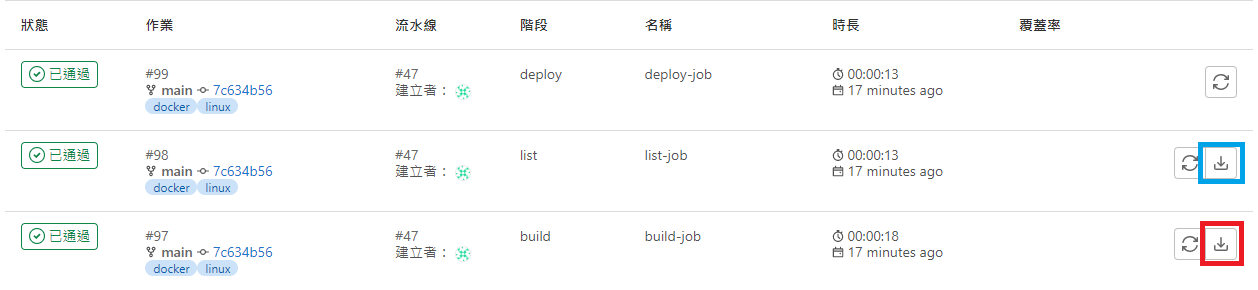
CI/CD > Jobs
If a stage uploads files to artifacts, a download icon will appear. The blue box allows downloading the change list, and the red box allows downloading the compiled files.
Deployments > Environments
Displays available environments. Clicking "Open" will open the URL http://127.0.0.1:9080.

WARNING
- Some approaches use
Docker in Docker (DIND)with images ending indind. However, I chose to mountdocker.sockinconfig.tomlso that images and containers are managed by the host's Docker Engine. - Variables starting with
CI_are predefined internal variables. See Predefined variables reference. - Official examples often use
CI_REGISTRYvariables, which require HTTPS and Access Tokens. This is omitted here for simplicity. - Image names must be lowercase. Since the repository name in the example contains uppercase letters, we use
CI_PROJECT_PATH_SLUG.
References
The .gitlab-ci.yml fileEnvironments and deploymentsgitlab-ci build asp.net core docker.Net & Docker (1) Running .Net Core API in a Docker container
Changelog
- Initial version created.